

How to Install and Configure Attach
For help or if you have questions or problems, please contact the Solution Center, 192 Parks Library, solution@iastate.edu or call IT Services at 294–4000.
About Attach
Attach can perform these functions:
mount one or more AFS directories
mount one or more server shares
These functions can be combined together or performed separately. When executed at login, Attach can be used to mount the necessary directories or shares for the user that is logging in.
The default configuration file will mount your AFS home directory on the Desktop. See the appropriate sections below for instructions on what to modify to alter this default behavior.
AFS directories are not actually mounted. OpenAFS mounts the afs volume and the Attach application creates a folder that points to the AFS directory you specify (i.e. a short-cut). Without this short-cut, you would have to browse down deep into the afs volume to get to the AFS directory you wanted to access.
System Requirements
The Attach application and AttachConfig application requires Mac OS X 10.7, OS X 10.8 or OS X 10.9. The AttachConfig application also requires Administrator privileges.
If mounting an AFS directory, OpenAFS must be installed and configured. See How to Install and Configure OpenAFS.
Kerberos must also be enabled and configured (for Keberos 5). See How to Configure Kerberos.
Downloading Attach
You can download the Attach application and the AttachConfig application from http://tech.its.iastate.edu/macosx/downloads/Attach–0310.dmg (377 KB downlaod).
Installing Attach
Drag the Attach application to the /Applications folder. If you want the Attach application to execute during login, then add the Attach application to System Preferences ⇒ Users & Groups ⇒ Login Items.
Configuring Attach
Configure Attach By Using AttachConfig
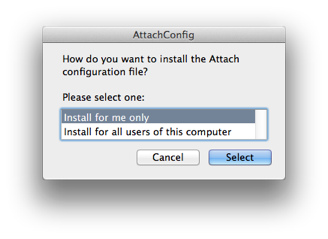
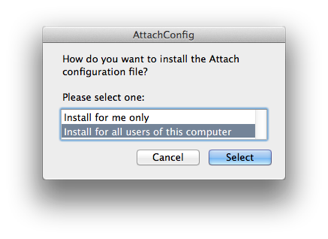
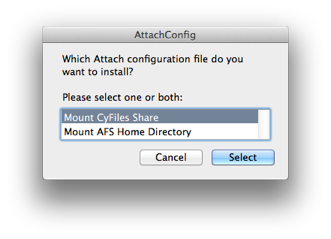
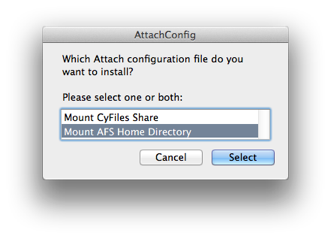
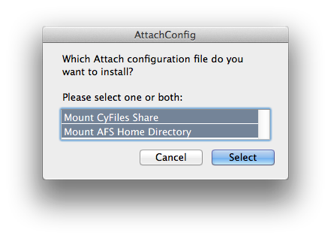
Double-click on the AttachConfig application and answer the following two questions. The AttachConfig application may require an administrator’s password.
How do you want to install the Attach configuration file?
Which Attach configuration file do you want to install?
Configure Attach By Editing edu.iastate.attach.plist
You can configure attach by editing the edu.iastate.attach.plist. It is recommended that you first run AttachConfig, then edit the plist that is installed by that application.
Configuring for AFS Mounting
AFS Mounting is defined in the AFSMount section of Attach’s configuration file.
<key>AFSMount</key>
<array>
<string>afs local</string>
</array>
One or more <string>afs local</string> statements can be defined, where:
afs
- can be ~ that represents the user’s AFS home directory
- can be ~locker that represents the locker’s AFS home directory
- can be a fully quailified AFS directory path
local
- can be ~/path that represents a path in the user’s local home directory
- can be a fully qualified local directory path
AFS Mounting Examples:
~/Desktop/$USER - Mount the user’s AFS home directory on the user’s desktop as $USER, where $USER is replaced by the user’s login username.
~/Desktop/macsox - Mount the the macosx AFS locker on the user’s desktop as macosx.
Configuring for URL Mounting
URL Mounting (i.e. AFP, SMB, etc.) is defined in the URLMount section of Attach’s configuration file.
<key>URLMount</key>
<array>
<string>url</string>
</array>
One or more
url
- can be afp://server/share that represents a share on an AFP server
- can be smb://server/share that represents a share on an SMB server
The full URL syntax can be specified:
afp://[username[:password]@]server/share[/path]
smb://[[domain;]username[:password]@]server/share[/path]
Replace all blanks in url with the string %20.
URL Mounting Example:
For OS X 10.9:
smb://cyfiles.iastate.edu/$PATH/$USER - Mount your CyFiles share, where $PATH is replaced with the path of where your folder is (based the the user’s login username) on the CyFiles server and $USER is replaced by the user’s login username. If the machine is not bound to Windows Active Directory, you will be asked to type in your Iowa State Net-Id password to access your CyFiles share. If your CyFiles mount does not show up on your Destktop, make sure that you have checked the Connected servers check box in the Finder’s Preferences.
For Mac OS X 10.7 and OS X 10.8:
smb://dfs1.its.iastate.edu/cyfiles/$USER - Mount your CyFiles share, where $USER is replaced by the user’s login username. If the machine is not bound to Windows Active Directory, you will be asked to type in your Iowa State Net-Id password to access your CyFiles share. If your CyFiles mount does not show up on your Destktop, make sure that you have checked the Connected servers* check box in the Finder’s Preferences.
Last Updated July 19, 2016

Copyright © 1999-2011, Iowa State University of Science and Technology. All rights reserved.